OUGIST KNOWLEDGE BASE · PRACTICAL FIRE SAFETY
Warmth can be an expected part of using an appliance. The useful question is whether the device is operating as designed—or showing a change that needs attention.
These five items illustrate different heat-management problems. They are not inherently unsafe and are not ranked by incident frequency. There is no single touch test, temperature limit or clearance that applies to every model.
1. Chargers and power adapters
A charger converts electrical power and may become warm during ordinary use. Covering it with bedding or placing it where air cannot circulate can make that heat harder to release. Damage to the cable, housing or plug is another reason to stop and investigate.
Use a charger and cable approved for your device and intended power requirements. A plug that fits is not enough evidence of compatibility. Apple’s adapter guidance, for example, identifies damaged cables, loose or damaged prongs, discoloration and unusual sounds as reasons to discontinue use; check your own manufacturer’s instructions too.
What to do
- Keep the adapter uncovered with ventilation around it.
- Inspect the cable, plug and housing before use.
- Replace unsuitable or damaged accessories with the specified equipment.
Keep in mind: Do not keep trying a visibly damaged adapter to see whether it still charges.

2. Laptops with obstructed ventilation
A laptop’s cooling design needs to move heat away from its components. A bed, cushion or blanket may cover air openings; accumulated dust can also interfere with airflow. A device on a hard desk can still need service if its cooling system is not working properly.
Follow the manufacturer’s cleaning instructions, and shut down and unplug before permitted maintenance. Avoid poking tools into vents or improvising internal repairs. Repeated temperature-related shutdowns are a reason to stop using the laptop and contact support, not simply to restart it each time.
What to do
- Use a stable, hard surface that leaves ventilation openings clear.
- Clean only as directed for the model.
- Have recurring overheating or shutdowns evaluated.
Keep in mind: Moving to a desk may solve blocked airflow; it does not repair a damaged battery or failed fan.
Source: Dell: Troubleshooting overheating and thermal shutdown.

3. Power banks exposed to heat or damage
A power bank contains stored electrical energy even when it is not connected to a phone. Excessive heat, physical damage or charging problems can make a lithium-ion battery hazardous. USFA advises avoiding direct sunlight and hot cars and stopping use at warning signs such as excessive heat, shape changes, odors, leaks or unusual noises.
Do not press a swollen case back into shape, puncture it or attempt to open the pack. Ask the manufacturer or a local battery collection program how to handle a damaged battery before transporting it. Ordinary recycling drop boxes may have different rules for damaged packs.
What to do
- Store and charge within the manufacturer’s temperature limits.
- Use compatible charging equipment and keep the pack uncovered.
- If it smokes or begins failing rapidly, move away and call 911.
Keep in mind: Do not put a lithium-ion power bank in household trash.
Source: USFA: Battery fire safety.

4. Hair dryers with obstructed air inlets
A hair dryer depends on air moving through the appliance. Hair and lint around the intake can reduce that flow while the heating element continues producing heat. Covering the inlet with your hand can cause a similar problem.
Unplug the dryer and let it cool before cleaning it as its manual directs. Some models allow a small brush or a removable filter; do not assume the same method is suitable for every appliance. Repeated thermal shutoffs indicate a problem that needs evaluation.
What to do
- Keep both intake and outlet unobstructed during use.
- Clean only after unplugging and cooling, following the manual.
- Never bypass a thermal cutoff or other safety device.
Keep in mind: A protective shutdown is a warning to investigate, not an obstacle to defeat.
Source: Conair: Hair dryer operating and safety instructions.

5. Air fryers crowded by walls or stored items
An air fryer deliberately moves hot air. Blocking its exhaust, placing it too close to surrounding surfaces or laying a towel over it can trap heat. Grease and food residue also need routine attention under the manufacturer’s cleaning directions.
Use a stable, heat-resistant counter and the clearance stated in your manual. Do not place the appliance on a stovetop, where an accidentally activated burner can create another hazard. The clearances in one brand’s instructions are examples for that model, not a universal number for every air fryer.
What to do
- Keep air inlets and outlets clear while operating.
- Follow your model’s placement and clearance requirements.
- Unplug and cool before cleaning grease or food residue.
Keep in mind: Hot exhaust can be normal; obstructed exhaust is a preventable problem.

A practical check to do today
- Move devices off bedding and clear ventilation openings.
- Inspect charging accessories and stop using damaged ones.
- Find the exact cleaning and clearance instructions for each appliance.
- Arrange service for repeated shutdowns, burning odors or abnormal heat.
Frequently asked questions
Is a warm charger always dangerous?
No. Some warmth can be normal. Unusual heat, damage, discoloration, odor or noises are reasons to stop use and follow manufacturer guidance.
Can I keep using a swollen power bank if it still works?
No. Stop using and charging it. Do not puncture it; ask the manufacturer or local battery program about safe handling.
How much space does an air fryer need?
Use the clearance in your exact model’s manual. Different designs have different inlet, exhaust and surface requirements.
Keep learning
Review the equipment after the safety check
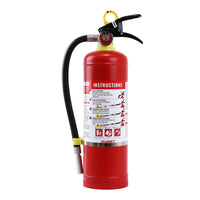
For broader household preparation, review the specified fire classes and instructions for OUGIST’s Essential ABC extinguisher. Do not interpret an ABC label as a promise to stop lithium-ion thermal runaway; a failing battery can remain hazardous or reignite, and evacuation takes priority.
Read product details and instructions
September 2026 preparedness offer: OUGIST’s National Preparedness Month promotion provides an extra 15% off eligible storewide purchases automatically at checkout, through September 30, 2026 at 11:59 p.m. MDT. Check current availability and final pricing at checkout. This independent OUGIST promotion is not sponsored or endorsed by FEMA or NFPA.
By Mark, Ougist Content Team. Sources and product information reviewed September 13, 2026. Images are illustrative AI-generated visuals; they are not photographs of documented incidents.
Sources and further reading
- Apple: Using power adapters, cables and plugs
- Dell: Troubleshooting overheating and thermal shutdown
- USFA: Battery fire safety
- Conair: Hair dryer operating and safety instructions
- COSORI: CS358-AF air fryer user manual
- USFA: Smoke alarms
- USFA: Home fire escape plans
- USFA: Choosing and using fire extinguishers
NFPA reference: NFPA: Safe Charging, Fire Prevention Week 2026 tip sheet (PDF)